Step-by-step guides, in the order a household needs them: install, put a dashboard on a screen, then add your calendar, photos, home and data. Each guide ends with a check you can see.
Choose how Denframe is protected, then give each phone, tablet, guest and wall display its own sign-in from the Access page. Every one of them can be signed out on its own, and none of them ever gets the owner password.9 steps →
Put several dashboards in a playlist that rotates on a screen, then let schedules choose which playlist plays at each time of day. Context rules can switch, dim or pause screens on their own.7 steps →
Keep private events off a screen in a shared room, give children's screens bigger pictures, and show calendars as times only when guests come or hide the screen at night.6 steps →
Tell Denframe, through Home Assistant, which input or app on a Samsung TV is Denframe, so it knows when the TV shows something else and can pause that screen's dashboard until you return.5 steps →
Send a video, picture, sound or stream to a Cast screen from its page, keep one-tap presets for speakers, and play local files on a TV that is a UPnP media renderer.7 steps →
Open a dashboard in the editor, add blocks, give each one its source, and move and resize them on the grid. Every change saves as you make it, and you can undo it.8 steps →
Bring Google, Microsoft or ICS calendars together on one wall, labelled by the people in your household, with private events kept off the screens that shouldn’t show them.8 steps →
Put the family’s to-do lists on the wall from Microsoft To Do, Google Tasks or Home Assistant, or keep them in Denframe, with routines and stars for the children.8 steps →
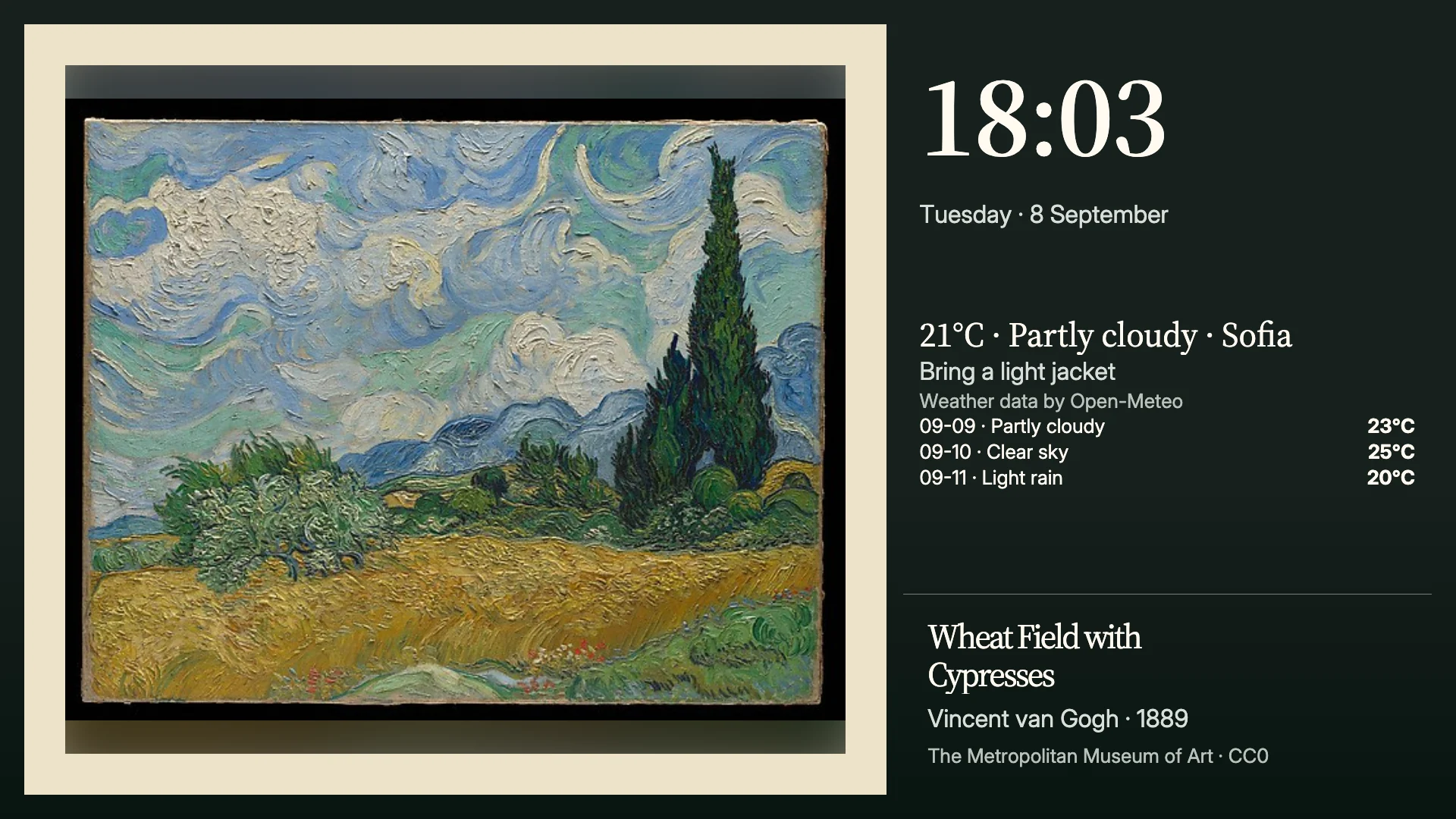
Put public-domain art or your own photos on a dashboard: upload them, send them from a phone, copy them from Google Photos or watch a folder, then frame them as a picture block or the dashboard’s background.8 steps →
Show the latest stories from a news publisher, from any website with a feed, or about a topic Denframe searches for, and mix up to four in one block.7 steps →
Put who to call in an emergency on the wall, and give a babysitter or visitor a phone view with the address, contacts, alarm instructions and a Wi-Fi code you choose for them.7 steps →
Let a doorbell, a leak sensor or a timer put a short alert over whatever your screens are showing, and see how Denframe decides which one to show and when it goes away.6 steps →
Have your screens say when a door is open, a leak is detected or a battery is low, and turn chosen lights and switches on and off from Denframe.7 steps →
Export chosen Denframe scenes, speaker mute switches and short summaries to Home Assistant through MQTT, then use them there and in its official car apps.8 steps →
Operate approved lights and switches from Denframe, and start dashboards or mute speakers from Apple Home and Siri, with Home Assistant between them.7 steps →
Connect Denframe to a broker you already run, read one exact state topic, and show live temperature and battery readings with clear freshness and availability.8 steps →
Read sensor states and API values in Denframe, or export selected Denframe scenes, controls and summaries to Home Assistant. Setup, verification and troubleshooting guides.Read the guide →
Find a layout, look, block, activity or background in Studio’s Library, get more from the Denframe Library or a file, and put it on a dashboard.8 steps →
Open an activity in the Library, listen to its cards, and play it on a screen for a round, until a time or until you stop it — or keep it on a screen every day.7 steps →
Save a dashboard, its look or one of its blocks as a Library item and a file you can give to someone, then submit it to the public Denframe Library for review.7 steps →
Carry a Studio page, a stream or a batch of photos from the computer to your phone by scanning a one-time code, and see what a paired phone shows the household.6 steps →