Add and arrange blocks on the grid
Open a dashboard in the editor, add blocks, give each one its source, and move and resize them on the grid. Every change saves as you make it, and you can undo it.
A dashboard whose blocks sit where you put them on the grid, each reading its own source, with every change saved and listed in its history.
- A dashboard. Create your first dashboard if you have none yet.
- Sources for the blocks you want, or set them up as you go: a block without a source says what it needs.
Follow these steps in your own Denframe. This website never connects to your household, your accounts or your devices, and never asks for your credentials.
Open the dashboard in the editor
In Studio, open Dashboards and choose Edit dashboard on the dashboard’s card, or press its picture. The editor takes the whole window. ← Dashboards at the top left takes you back.
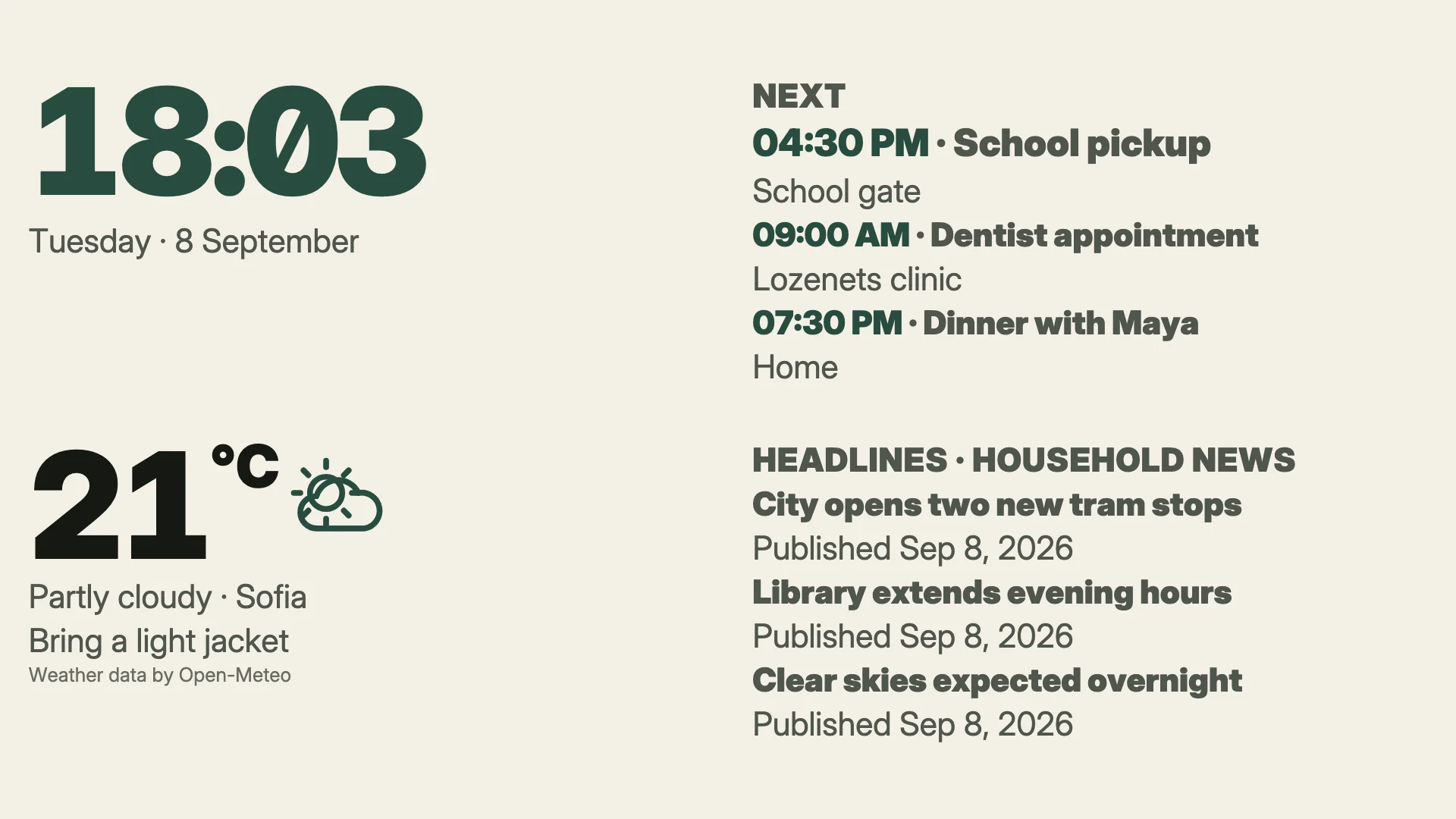
The picture in the middle is the real render of the dashboard, drawn for the screen chosen in the bar above it. The panel beside it shows whatever you have selected. With nothing selected it shows the Dashboard scope, and Blocks comes first, with a row for each block.
There is no Save button. Each change is saved as you make it, and the status at the top says Saved with the time.
Add a block
Choose + Add a block in the bar above the picture. The toolbox lists:
- The block kinds, those ready to show first and those that need a source after. Each says whether its source is ready, for example
Sofia · up to date. A kind you have several sources for, such as two weather places or a few art collections, says how many: choose it to pick the one the block reads, or All blocks to go back. - From your library: blocks from the library, and Browse the library → to find more.
Click a card to add the block, or press it and drag it onto the picture to drop it into a cell. The new block arrives selected, and the toolbox’s footer lists what is already on the dashboard.
A dashboard holds up to 12 blocks. At the limit, + Add a block is unavailable and says to remove one first.
- The block kinds, those ready to show first and those that need a source after. Each says whether its source is ready, for example
Choose what the block shows
A block that needs a source shows a sample until it has one; a few kinds stay off instead. For most kinds its sheet opens over the editor straight away: pick one of your sources, or connect a new one without leaving the dashboard.
Later, select the block and look under Source in its scope. Change opens the same sheet, and Open the source page → opens the source’s own settings: its defaults and the other dashboards it is on.
The block’s Content section holds what the kind lets you choose, such as which calendars a calendar block shows. Its Style section has Text size, Emphasis, Stand out and Size, each with its own reset while it differs from the dashboard.
Tasks, meals, notes and custom blocks with sources keep their setup on their own source pages. An artwork block chooses its collection or album right in the panel.
Move and resize blocks on the grid
Drag a block’s card on the picture to move it, and drag one of its eight handles to resize it. Moving a block pushes its neighbours aside. Hold ⌥ (Alt on Windows) while you drag to leave them in place; a drop on a taken cell is then refused. Escape cancels a drag.
From the keyboard, select a card, then use the arrow keys to move it one column or row, Shift with the arrows to resize it, and ⌥ or Alt with the arrows to resize it from the top or left.
A block shows the richest form of its content that fits its cell, never more. If its cell is too small for any of its forms, the card says Too small and its row offers Find a larger cell. If there is no free cell for it at all, the row says No room and offers Shrink to fit. Denframe never moves a neighbour or drops a block to make room.
The landscape grid is 12 columns by 6 rows; a portrait screen uses 6 by 12, worked out from the landscape layout. Arranging while a portrait screen is chosen in the bar keeps a separate portrait arrangement, and Match landscape goes back to the one worked out from landscape.
Tidy up the arrangement
Tidy up in the bar above the picture lays every block out afresh on the grid, starting from how the dashboard looks now. Over a featured picture, it also moves blocks off the picture’s subject where there is room.
A dashboard made from a layout keeps that layout until you tidy it or drag a block. Either one puts it on the grid.
Hold Peek, or press
Pon the picture, to fade the blocks and see the whole background.Tidy up is not offered while a portrait screen is chosen: choose a landscape screen to tidy, or to make the first drag on a dashboard not yet on the grid. A picture dashboard with its reading in one corner and a calendar wall keep their own arrangement, set in the Reading group of the Dashboard scope. On a picture dashboard with its reading in one corner, dragging a block -- or Place by hand in the bar -- places the blocks by hand over the picture, each in a cell with its own shading: the bar then says Placed by hand, and Back to a corner puts them all back.
Use the Blocks outline
Blocks in the Dashboard scope lists every block with its state, such as needing a source or not fitting its cell. Press a row to select its block and open its scope. The Dashboard tab takes you back with the block still selected, and Escape puts the block down.
The eye on each row shows or hides its block. A hidden block has no card on the picture, so its row is how you bring it back. The ⋯ menu offers Duplicate, Move up and Move down (on a dashboard that shows one block of each kind, Duplicate stays greyed out and says why), Reset style when the block has its own style, and Remove.
On a row, ⌘D or Ctrl+D duplicates the block and ⌥↑ or ⌥↓ moves it.
Remove blocks, undo and go back in history
To remove a block, select it and press Delete or Backspace, or choose Remove from its ⋯ menu. Nothing asks first, because every change can be undone.
Undo and Redo sit at the top of the editor (⌘Z and ⌘⇧Z, or Ctrl+Z and Ctrl+Shift+Z). On a phone they are in the menu beside the dashboard’s name.
Press the save status beside them to open the dashboard’s history: every save, newest first, with Current marking where you are. Choose an earlier save to restore it. The restore is a save too, so you can undo it.
Check it worked
The picture shows each block in the cell you gave it, the outline lists every block (after a landscape arrangement, top to bottom and left to right), and the status at the top says Saved. Screens showing the dashboard pick up the change.
Next, choose its look, colours and background, then preview it on your screens.
If it doesn’t work
+ Add a block is unavailable
The dashboard has 12 blocks, the limit. Remove one first.
A block shows nothing on the picture
Check its row in Blocks. It may be hidden (press the eye), need a source (choose one under Source), or need room (Find a larger cell or Shrink to fit, whichever its row offers).
Tidy up is missing
It is not offered while a portrait screen is chosen in Preview on, on a picture dashboard with its reading in a corner or its blocks placed by hand, on a calendar wall, or while every block is switched off. Choose a landscape screen or size.
A drag snaps back
With ⌥ or Alt held, a drop on a taken cell is refused. Let go of the key to push the neighbours aside instead.
The status says Reconnecting…
The editor lost its connection to Denframe. Check that Denframe is still running; the status says Saved again once it reconnects.