Leave a family note
Post a short note on the wall for the household, for one person or for one screen, and let it disappear on its own.
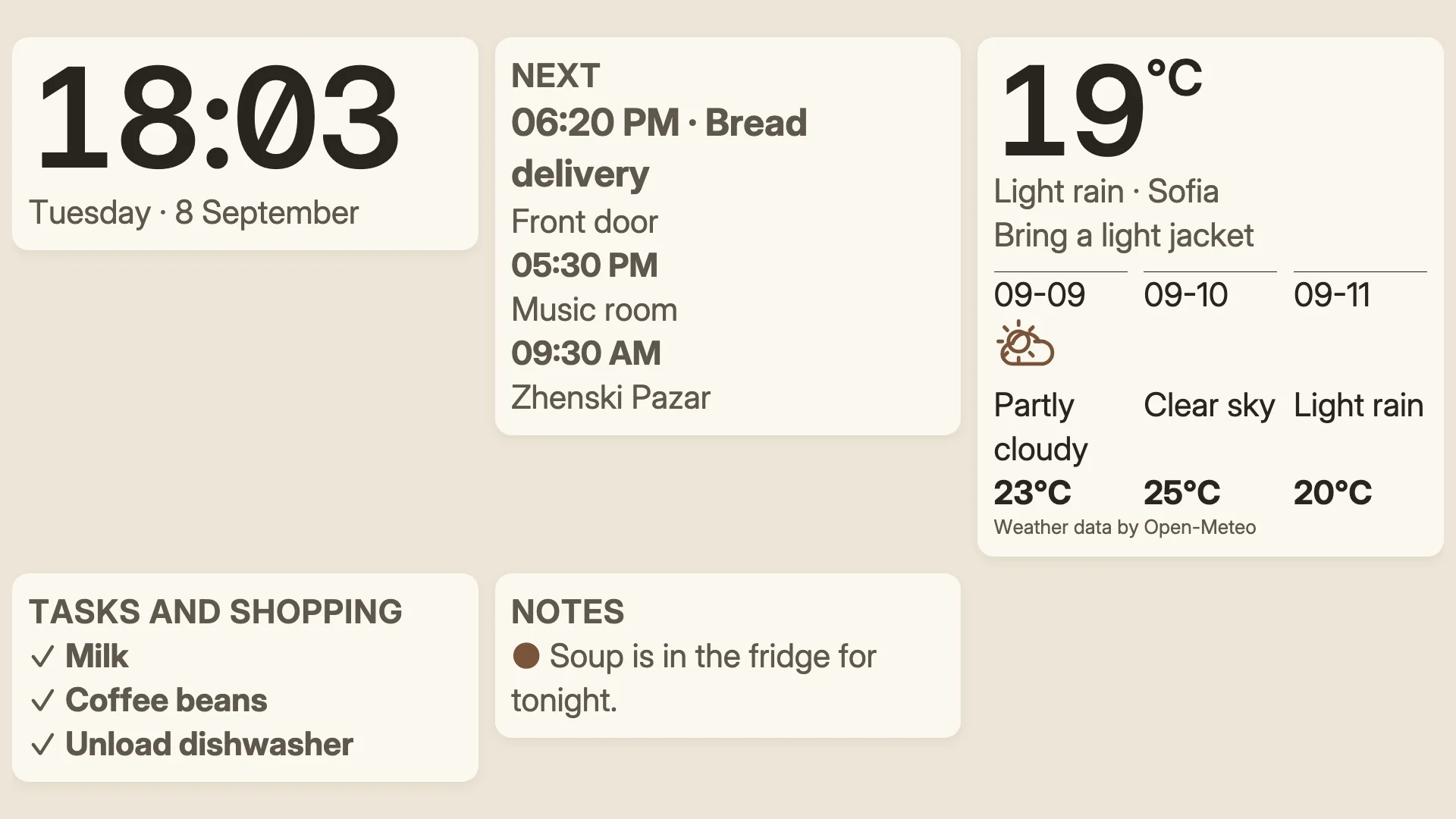
A Notes block on the hallway screen reading “Dinner is at six”, which leaves the wall by itself after a day.
- Denframe installed and running. See Install Denframe.
- People added on the Calendar page if a note is for someone. See Put the family calendar on the wall.
Follow these steps in your own Denframe. This website never connects to your household, your accounts or your devices, and never asks for your credentials.
Open the Notes page
In Studio, open Sources, then Notes. Each note on the page says who it is for, which screens show it and how long it has left.
Write the note
Choose “+ Post note” and fill in the sheet:
- Note: plain text, up to 280 characters, without
<,>or control characters. A link shows as plain text. - Author: Owner, or one of your people. It can’t change later.
- Expires: 1 day, 1 week (the default) or 30 days.
- Visibility: public, Household, or private to its author (only when the note has an author).
- Audience: the people it is for; none means The household.
- Screens: where it shows; none means Every screen.
Choose Post note. The first note also makes the Notes source a dashboard shows.
- Note: plain text, up to 280 characters, without
Show notes on a dashboard
Under the notes, Show up to sets how many a dashboard shows at once (up to four), and Audience limits it to some people’s notes (up to 20 people; none means everyone).
Under Showing on, choose Add to a dashboard… to put a Notes block on a dashboard, or add a Notes block in the dashboard editor.
Know who sees it
A note reaches a screen only if it passes every filter: its audience, its screens, privacy mode, and the dashboard’s and screen’s Privacy. Who it is for and which screens may show it never leave Denframe; a screen receives only the text, its author and when it expires.
Household members on a paired phone see the notes meant for them, and can share a household note as themselves for one week. A private note is seen only by its author and the owner.
Limit Value Note text 1 to 280 characters Active notes 200 Notes on one screen 4 Expiry 5 minutes to 30 days; 7 days by default New notes 10 a minute per person Change or remove a note
Each note’s ⋯ offers Edit… and Remove. A note left alone disappears from every screen at its expiry, and its text is erased within a minute.
On the Notes card’s ⋯, Export notes… copies the active notes as JSON, with who they are for. Keep it as safely as a backup.
Check it worked
The Notes block on the chosen screens shows the note with its author. A screen it is not meant for, or a dashboard whose Privacy is below the note’s, does not show it, and it leaves the wall on its own when it expires.
If it doesn’t work
“Write the note first.”
Type the note: it needs at least one character.
Private visibility can’t be chosen
A private note belongs to its author: choose an Author first.
The note is not on a screen
Check its Audience and Screens, the block’s Audience and Show up to, whether privacy mode is on, and the dashboard’s Privacy.
Posting is refused
Wait a minute: a person can post 10 notes a minute, and a household keeps up to 200 active notes.
“Someone else changed this meanwhile; your edits are kept — save again to apply them over theirs.”
Someone else changed the note first. Save again to apply your edits over theirs.