Choose a look, colours and background
Dress a dashboard: pick a look, adjust its colours, its spacing and surfaces, and put a picture or a gradient behind it.
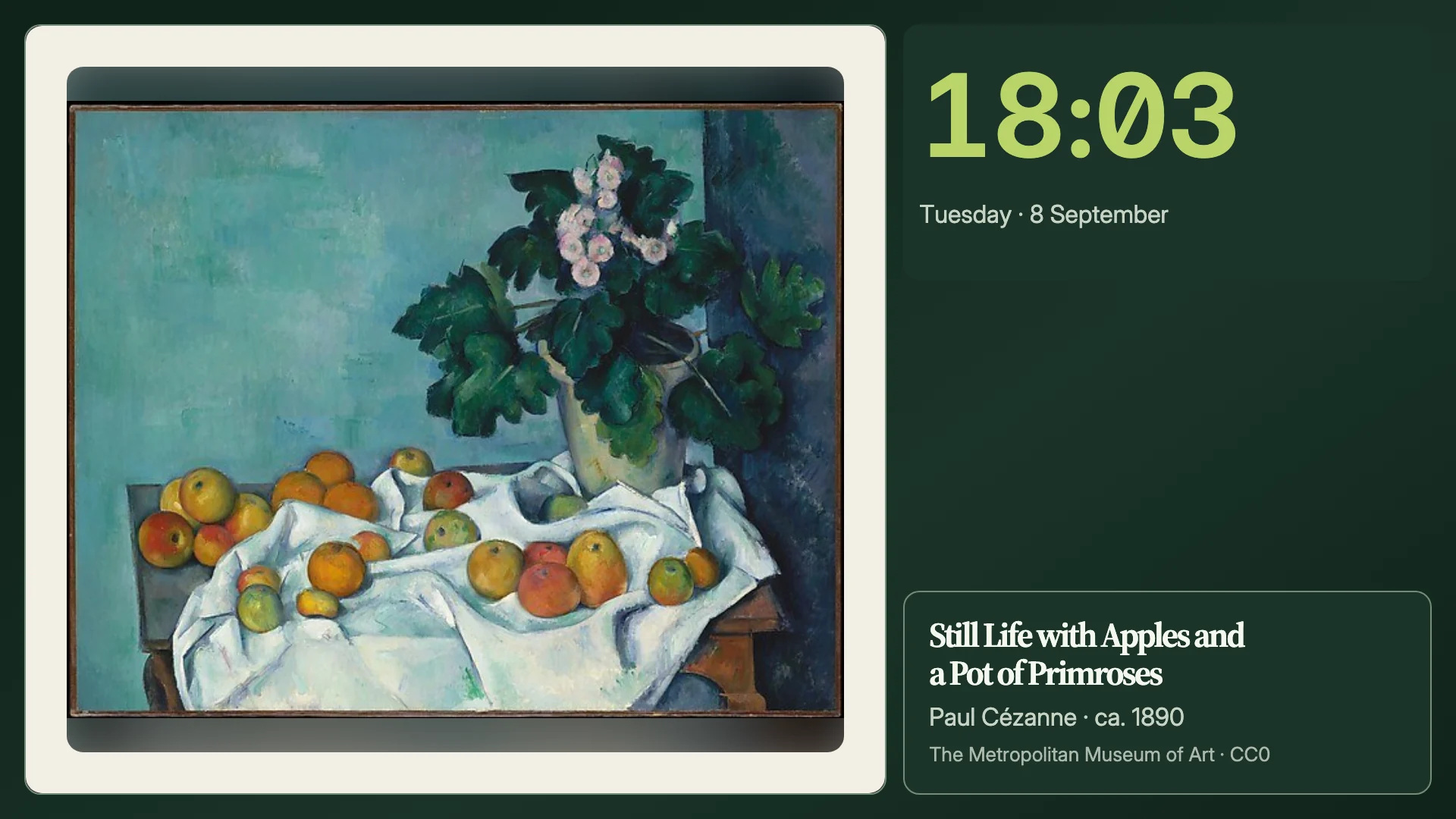
A dashboard in the look you chose, with your own colours, spacing and background, previewed on the picture before you keep it.
- A dashboard open in the editor. Add and arrange blocks shows how to open one.
- For a picture background: an artwork collection or a photo album. See Photos and art.
Follow these steps in your own Denframe. This website never connects to your household, your accounts or your devices, and never asks for your credentials.
Choose a look
With no block selected, the panel shows the Dashboard scope. Open its Look group: each tile is a look drawn in its own colours, the ones Denframe includes first, then looks you added from the library.
Press a tile to apply it. The arrow keys only move between tiles, so nothing changes until you press one. More looks… opens the Library filtered to looks.
Change the colours
Under the look tiles, the palette row shows the colours the dashboard wears and whether they come from the look or you changed them. Choose Customize colours › to open the Colours page.
Set Background and Accent first. Picking a background works out the other colours to match and keeps text readable on it. Each colour is listed under Every colour if you want to change it yourself.
The picture previews your colours as you go. Choose Apply to keep them, Cancel to drop them, or Reset to look to set the look’s own colours back, then Apply to keep that. The back arrow or Escape returns to the Dashboard scope; your unapplied colours wait there, with their own Apply and Cancel.
A colour pair with too little contrast is not previewed: the page names the pair and Apply stays unavailable until you fix it. Opening another dashboard drops colours you have not applied.
Set spacing and surfaces
Open Spacing & surface:
- Edge space: the room between the screen’s edge and the blocks: None, Tight, Standard or Wide.
- Gap: the room between blocks: Tight, Standard or Relaxed.
- Surface: what each block sits on: From look, Cards, Veil, Bare or Outlined.
- Corners: From look, Square, Soft or Round. With no surface there is nothing to round, so the row offers use Cards instead.
- Font: From look, Sans or Serif.
To make a single block stand out from the dashboard’s surface, select it and turn on Stand out in its Style section.
Edge space is the dashboard’s. A TV’s overscan, the edge it hides, is the screen’s and is set in its screen settings; see Keep a screen looking right. Edge space is added inside the overscan, and None never removes it.
Put a background behind the dashboard
Open Background and choose its Kind: From the look, Solid, a gradient (Aurora, Canopy, Dunes), or under Pictures Artwork (museum art), Album (your own photos) or Weather (a gradient that follows the sky).
For a picture, choose the collection or album under Pictures, then:
- Mat: the frame around the picture: Full bleed, Modern, Museum or Shadow box.
- Show the picture: Around blocks, Behind blocks or Featured.
- Dim: Off, Soft or Strong, to calm busy art behind the blocks.
- Tick the box to rotate through the collection or album with a slow zoom, and set how often under Change picture.
With a picture behind the dashboard, the bar above the picture says how much of it the blocks leave visible. Hold Peek to see it without them.
Frame a picture block
A picture block has a Picture section of its own. Edges is Bleed (to the screen edge) or Inside (its cell). Fit is Smart, Fill (crops to fit) or Whole picture (never crops). Where the fit crops, the section shows what is cut.
For a photo from an album, Focus sets the part a crop keeps. It changes that photo everywhere it is shown.
A picture alone on the dashboard offers Fill the screen: the whole screen, edge to edge, with no mat. Beside other blocks it offers Make it the background instead, and Undo brings the block back.
Check it worked
The picture shows the dashboard in its new look and colours, the palette row no longer offers Apply, and the status at the top says Saved.
Next, preview it on your screens to check it reads well from across the room.
If it doesn’t work
Apply is unavailable on the Colours page
Two colours are too close to read. The page names the pair; change one of them.
Corners changes nothing
Nothing has a surface to round. Choose use Cards, or a Surface other than Bare.
Pictures has nothing to choose
Add an artwork collection or a photo album first: see Photos and art.
A look from the library doesn’t appear
Add it from the Library first; see Use the library. More looks… opens it.