Plan the week’s meals
Keep the week’s meals in a calendar the family already shares, or in Denframe’s own meal plan, and show today’s on the wall.
A Meals block on the kitchen screen showing today’s breakfast, lunch and dinner, such as “Dinner · Lasagne”, with who is cooking.
- Denframe installed and running. See Install Denframe.
- For a meals calendar: a Google, Outlook or ICS calendar added on the Calendar page. See Put the family calendar on the wall.
Follow these steps in your own Denframe. This website never connects to your household, your accounts or your devices, and never asks for your credentials.
Choose where the meal plan lives
There are two ways to keep the plan. A calendar given the Meals role is the plan, kept in the family’s own Google or Outlook calendar and edited in its app. Without one, Denframe keeps a simple plan of its own, which needs no account.
In Studio, open Sources, then Meals. The page says which calendar is the meal plan, or offers Denframe’s.
Use a calendar as the meal plan
On the Calendar page, in the calendar’s row under Calendars, set Role to Meals. See Say what each calendar is. The calendar leaves the calendar’s views and becomes the plan; every Meals block reads it.
Each event is a meal. Start the title with the meal, such as
Dinner: Lasagne; without one, the meal comes from the time it starts (before 11:00 breakfast, before 15:00 lunch, before 17:00 a snack, otherwise dinner; an all-day event is dinner). Put a person’s title tag in the title to say who cooks.Add your own meal words
The meal words are understood in English, German, French, Spanish, Italian, Dutch, Portuguese, Polish and Bulgarian at once. To add the household’s own, go to Meals calendar words on the Meals page: type Your word, choose what it Means (Breakfast, Lunch, Snack or Dinner) and choose Add word. Only the owner adds and removes words.
Or keep Denframe’s meal plan
Without a Meals calendar, choose Use Denframe's meal plan ▸ beside No Google or Microsoft account?. The page shows a week, with ◀ and ▶ to move between weeks and This week to come back.
Choose + Add on a day, or “+ Add meal”, and fill in the Title (up to 60 characters), the Meal, the Day and the Assignee. The Dietary note (kept off screens) and Recipe link (kept off screens) stay on this page. Choose Add meal.
Set Time zone with Change ▸: it is the zone “today’s meals” are read in on a screen.
Denframe’s own plan shows today’s meals on a wall; the rest of the week is for planning here. A meals calendar shows the week, today first.
Show it on a dashboard
Add a Meals block to a dashboard in the dashboard editor, or from Showing on on the Meals page with Add to a dashboard…. While a calendar has the Meals role, every Meals block reads it.
Check it worked
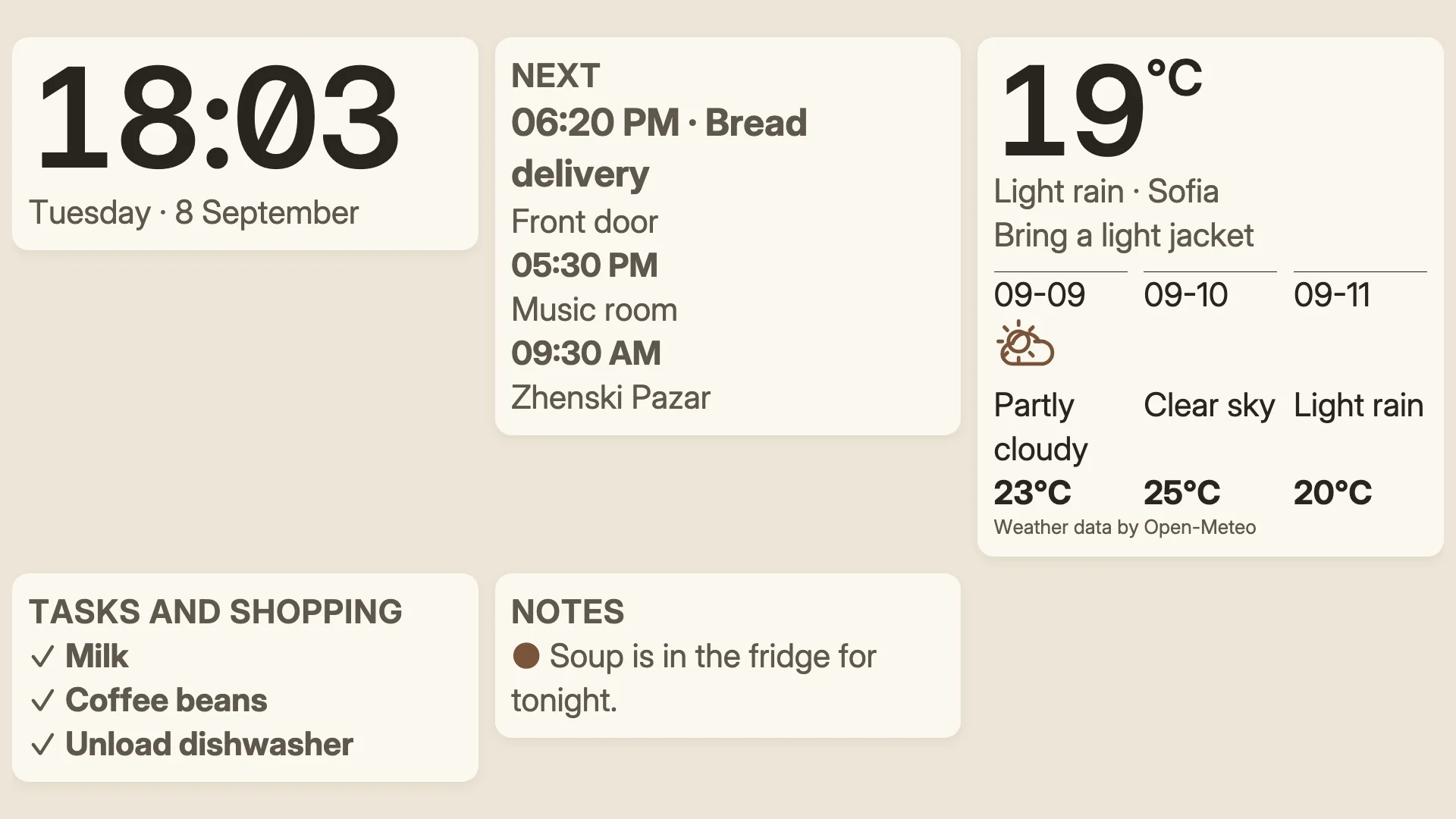
The Meals block shows today’s meals, each with its meal and who cooks. Add “Dinner: Soup” to the meals calendar for today, or a meal to Denframe’s plan, and it appears on the next refresh.
If it doesn’t work
Use Denframe's meal plan ▸ is not offered
A calendar already has the Meals role, so it is the plan. Change that calendar’s Role to use Denframe’s plan instead.
A meal shows as the wrong meal
Start its title with the meal and a colon, such as Lunch: Soup, or add your own word under Meals calendar words.
No meals from the meals calendar show
If its Privacy on the Calendar page is Busy only or Nothing, its events are left out: set it to Everything or Titles only. Calendar meals never show in privacy mode or on a Public dashboard.
Today’s meals are a day off
Set the Meals page’s Time zone, or the calendar’s Time zone on the Calendar page.
“Give the meal a title.” or “Pick the day this meal is on.”
Fill in Title and Day before saving.