Show your photos and museum art
Put public-domain art or your own photos on a dashboard: upload them, send them from a phone, copy them from Google Photos or watch a folder, then frame them as a picture block or the dashboard’s background.
A picture block or a whole-screen background that moves through a museum collection or your album at the pace you choose.
- Denframe installed and running: see Install on macOS, Windows or Home Assistant.
- A dashboard to show it on: create your first dashboard.
- To add from a phone: LAN access, so the phone can reach Denframe (see Install on macOS).
- To copy from Google Photos: Google sign-in set up for your household, as for the family calendar.
Follow these steps in your own Denframe. This website never connects to your household, your accounts or your devices, and never asks for your credentials.
Put museum art on a dashboard
In Studio, open Sources, then Artwork, and choose Add artwork. Choose Museum art, then a Collection.
Every Denframe carries two collections: Calm landscapes, the default art, and Botanical plates. Collections you get from the Library are listed too. Tick the dashboards under Show on and choose Add artwork.
Every work is public domain, checked against the museum’s own public-domain record when the collection is made. Nothing is fetched from a museum while you use it: the works are already on your Denframe.
Get more art from the Library
In Studio, open Library and look at Backgrounds. A collection’s page offers Use as background… and Put on a dashboard…. The picture list in the editor also has a Download group with the collections you haven’t got yet: choosing one gets it and shows it once it arrives.
A collection removed or withdrawn by the Library stops showing at once, and anything showing it falls back to the included art.
Add your own photos or a folder
Add artwork has two more ways in:
- Upload photos: give an Album name and choose the Images from this device: JPEG, PNG, GIF, WebP or HEIC/HEIF (iPhone) photos. An album holds up to 200 photos.
- Folder on this server: an approved folder Denframe reads and never changes, such as
/mnt/photos/family. Denframe scans it and turns its images into an album; Scan now on the folder’s page looks again.
Folders are an owner feature. The folder must sit under a directory listed in
DENFRAME_LOCAL_ALBUM_ROOTSon the host (separated by:on macOS and Linux). A folder with more than 200 images is refused rather than cut short, and a household can have up to 20 folders; an image appears once it is unchanged across two scans, so scan again after copying finishes. Folder albums don’t work on Windows yet. On a Mac, allow Denframe the folder in Privacy & Security if macOS asks.Add photos from your phone
In the dashboard editor, open the picture list of a picture block’s Source, or of the Background, and choose Add photos…. In Add photos, choose Add from your phone, choose where the photos go (when you already have an album, pick it under Add to, or A new album; a new album takes an Album name), and choose Show code.
Scan the code with the phone’s camera and choose photos in the phone’s own picker (Google Photos on Android, iCloud Photos on iPhone are offered there). The code works once, on your home network, for 15 minutes, and only adds photos to that album; the phone doesn’t sign in. The sheet counts the photos as they arrive; Done puts the album on the block or background.
On Home Assistant, a phone reaches Denframe through Home Assistant instead: open Denframe in the Home Assistant app on the phone and use Add photos there. See Denframe on your phone.
Copy photos from Google Photos
In Add photos, choose From Google Photos, name a new album (or, once you have copied from Google Photos before, pick that album under Add to), and choose Continue. Sign in to Google opens in a new tab; then Pick in Google Photos opens Google’s picker (or scan its code to pick on your phone). Come back to the sheet: the copy starts on its own, and Done puts the album on the block or background.
Denframe copies the photos you pick, once; it can’t follow an album. Videos are skipped, and a photo picked again isn’t copied twice. Add more copies more into the same album.
Your photos stay on your Denframe. A photo from a phone or Google Photos is kept as a screen-sized copy (at most 1920 × 1080) and a thumbnail, with its metadata (location included) stripped; the original stays where it was. The Google sign-in asks only to read the photos you pick, and is forgotten when the copy ends. Your photos aren’t sent anywhere else.
Choose how pictures sit
On the Artwork page, each source has its own presentation, which every dashboard showing it follows:
- A museum collection: Fit, Mat, Change every, Placard (how long the title card stays up), Texture and Gentle movement (a slow drift, not a burn-in guarantee).
- An album or folder: Fit, Change every, Shuffle, Pair portrait images and Pure-art mode (no captions). For an album, Images with Browse ▸ reorders or removes photos; a folder’s images only show there, so add or remove files in the folder itself and scan again.
In the editor, a picture block’s Picture settings are its own: Edges (Bleed to the screen edge or Inside its cell) and Fit (Smart, Fill or Whole picture), with what the fit cuts said under it. For an album photo, Focus sets the part a crop keeps, for that photo everywhere it shows. Make it the background moves the picture behind every block; when the picture is the dashboard’s only block, Fill the screen takes the whole screen instead.
Use pictures as the background
In the editor, select Dashboard in the docked panel and open Background. Under Kind, choose Artwork or Album, then choose from Pictures: Ready on this hub, Download and Your photos, ending with Add photos….
Tick the box to rotate through the collection or album with a slow zoom, and set how often under Change picture (the collection’s own interval is for its picture blocks). Show the picture chooses Around blocks, Behind blocks or Featured, where the blocks step aside for the whole picture every 10 minutes, all night and on a tap. Dim quietens busy art.
Mat frames the picture: Full bleed, Modern, Museum or Shadow box. When text sits straight on the picture, Text over the picture picks light or dark ink (Auto chooses whichever reads best). For an album, Pair portraits shows two upright photos side by side on a landscape screen.
Text stays readable over any picture: a change that would break its contrast is refused when saved. See Look, colours and background.
Check it worked
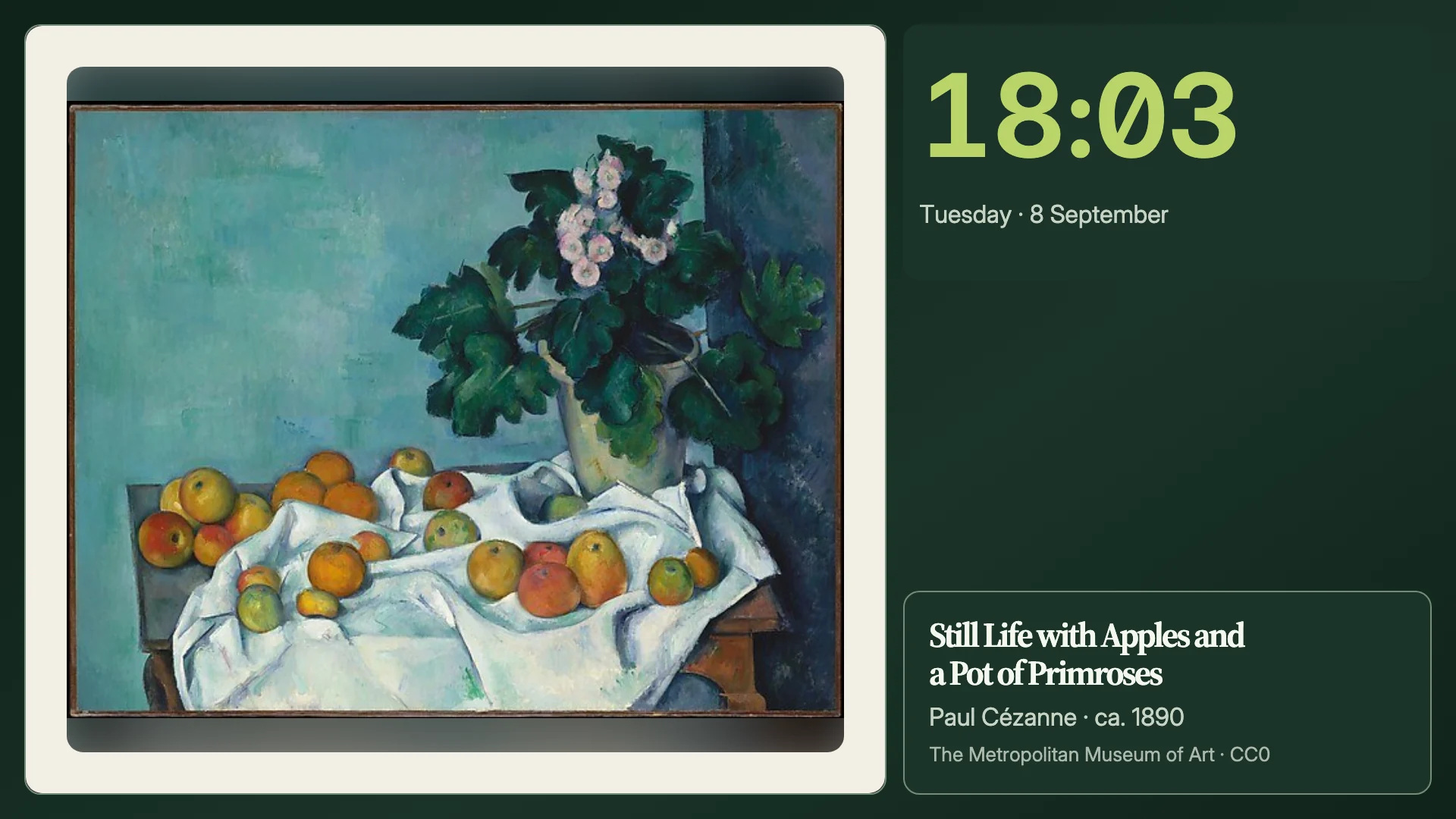
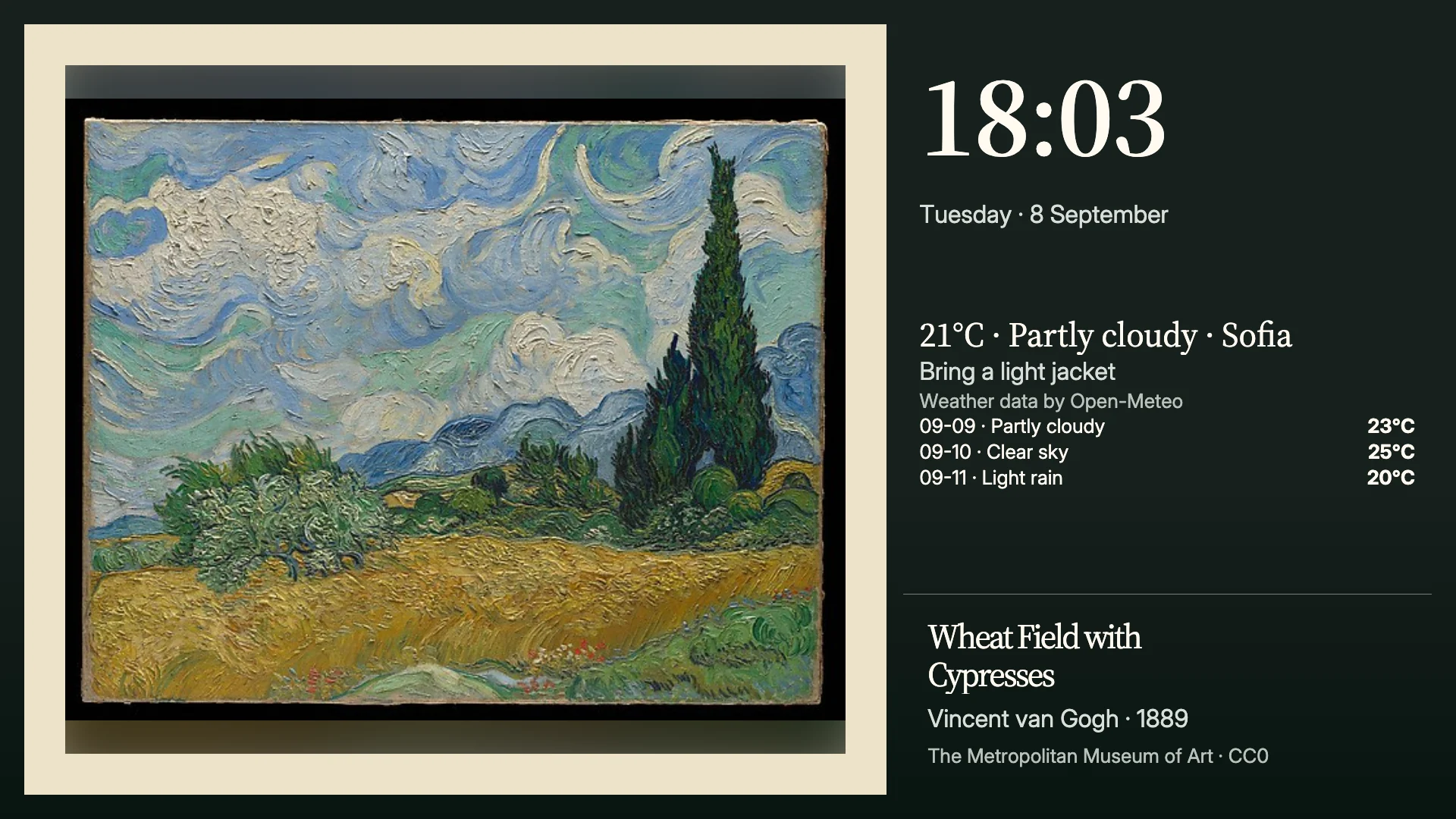
The screen shows the art or your photos and moves to the next at the interval you set. A collection shows its placard; an album with Pure-art mode on shows none. On the Artwork page, the source’s card shows its picture and state.
If it doesn’t work
From Google Photos is dimmed
Google sign-in isn’t set up. In Studio, open Access, then Calendar sign-in; if it says whoever runs this Denframe sets it, ask them.
No QR code, and the sheet says phones can’t reach Denframe
Turn on LAN access: on Denframe Desktop, choose Enable LAN receiver access… from its menu-bar or tray icon; on a server, set DENFRAME_RECEIVER_BASE_URL. Then open Add photos again.
The code expired before the phone used it
Choose New code and scan again.
The photo library is full
Upload from this computer shows the room used and left, and refuses photos that won’t fit before sending any; from a phone or Google Photos, Denframe refuses them as they arrive. Delete photos you no longer show.
A folder shows no images
Check that its path is under DENFRAME_LOCAL_ALBUM_ROOTS and that it holds no more than 200 images, then Scan now once copying has finished: an image appears after two scans see it unchanged. Images larger than 32 MB are skipped.
The background shows landscapes instead of the chosen art
The chosen collection has no works to show, or was withdrawn, so the included art stands in. Choose another collection.
The picture never changes
An album with one photo has nothing to change to: add a second photo.
Remove the copies… is refused
A dashboard still shows the album or one of its photos. Take it off that dashboard first.