Create your first dashboard
Say what the screen is for, start from a layout, and check the preview before any screen is involved.
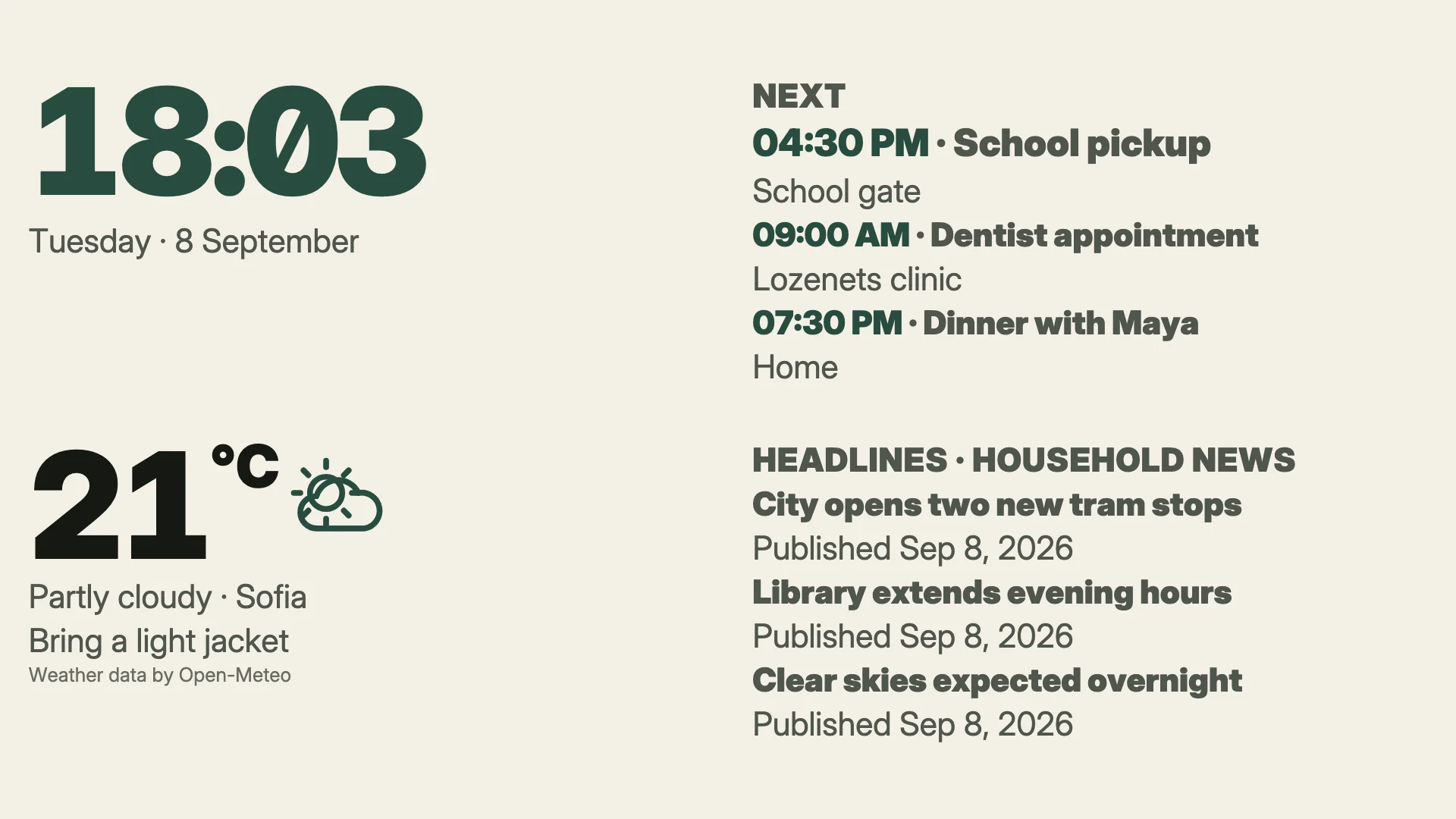
A saved dashboard on Home, drawn by the real renderer, ready to show on a screen.
- Denframe installed: macOS, Windows or Home Assistant.
- Nothing else: the Blank starting point, a clock, needs no source or account.
Follow these steps in your own Denframe. This website never connects to your household, your accounts or your devices, and never asks for your credentials.
Choose what the screen is for
A new Denframe opens Your first dashboard after its first-run setup. Later, choose New dashboard in Studio for the same flow.
Under What should this screen do?, pick a starting point. Each card is a layout with its blocks already placed; Blank starts with a clock. Get more layouts opens the Library for more. Choosing a card moves on to the next step.
Answer a few details
If the layout needs a source to show something, A few details asks for it: a City for the weather forecast, or under Watch, Currency rates (with Your currency) or Stocks. Where the City hint says so, leave it blank to set it up afterwards; to make the dashboard without a forecast, switch off the Show Weather switch. You can change these answers in Sources later. Then choose Continue.
Switch on what it shows
What's on it lists the layout’s blocks with a switch each, and Also available offers more. A block that needs a source either shows a sample until it is set up, or stays hidden until it is; its row says which.
The preview beside the choices is the real renderer. Switch it between TV 16:9 and Portrait to check how the dashboard reads on either shape, then choose Continue.
Choose a look and a name
In Look & name, pick a Look and give the dashboard a Name, then choose Create dashboard.
Show it, or fine-tune it first
The last step is titled with the dashboard’s name, for example “Kitchen is ready”. Under Show it on a screen it lists the screens it can be shown on; a press shows it there. With no screen to show it on yet, it is saved to your dashboards. Choose Done to finish.
To keep working without lighting up a household screen, choose Open in the editor under Or fine-tune it first instead; Arrange blocks explains the editor.
Check it worked
The dashboard is on Home under Cast a look, and its picture matches the preview. Next, connect a screen or an Android panel, then add your own calendar and data.
If it doesn’t work
You left the flow halfway
If you went to another page or reloaded, open the flow again in the same browser tab: it offers Continue where you left off or Start over. Closing the flow and choosing Discard does not keep your choices.
A block shows a sample
It has no source yet. Set it up in Sources, or switch the block off.
No screen is offered on the last step
Screens appear once they are connected; see Chromecast, Google TV and Nest Hub. The dashboard is saved either way.