Show tasks, chores and routines
Put the family’s to-do lists on the wall from Microsoft To Do, Google Tasks or Home Assistant, or keep them in Denframe, with routines and stars for the children.
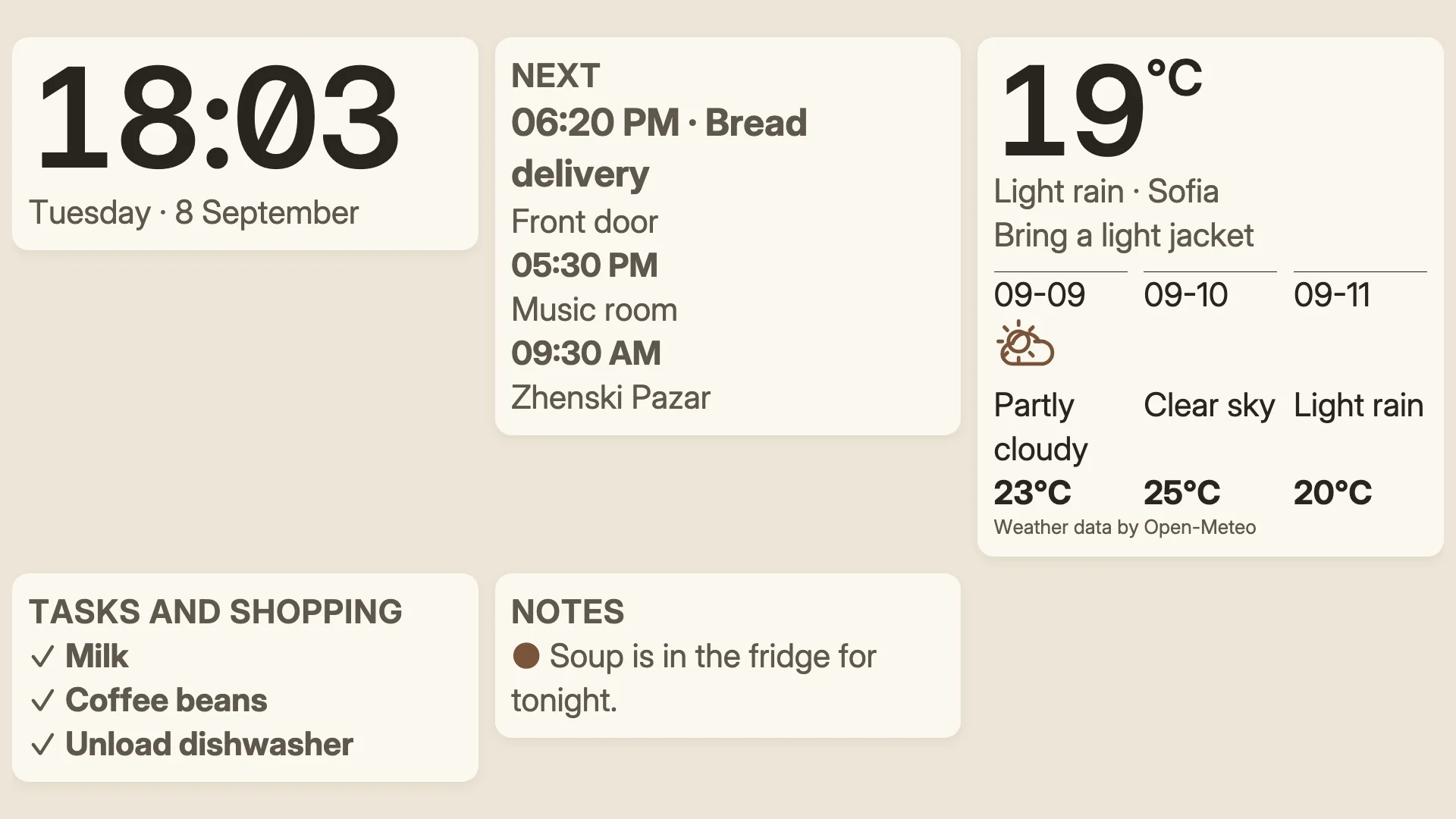
A Tasks block showing each person’s next to-dos, due first, with a morning routine’s steps leading the list and stars earned as they are ticked.
- Denframe installed and running. See Install Denframe.
- Optionally, a Microsoft To Do or Google Tasks account, with Microsoft or Google sign-in set up as in Put the family calendar on the wall. Google Tasks also needs the Google Tasks API enabled for your client.
- Optionally, Home Assistant connected. See Show Home Assistant sensor values.
- People added on the Calendar page, to give lists to people. See Put the family calendar on the wall.
Follow these steps in your own Denframe. This website never connects to your household, your accounts or your devices, and never asks for your credentials.
Open the Tasks page
In Studio, open Sources, then Tasks. The page has a section for each task app, Microsoft To Do, Google Tasks and Home Assistant to-do, then Stars and rewards, then Denframe's list.
Every one of them is optional. A household without a Google or Microsoft account keeps its tasks, routines and groceries in Denframe’s own list, and the wall draws them the same way.
Connect your task apps
Each app’s section starts with a row such as Lists from Microsoft To Do. Choose Connect ▸ on it.
- Microsoft To Do and Google Tasks open a read-only sign-in in another tab. Choose the Continue to Microsoft (or Google) button, sign in, come back and choose Check connection. Tick the Lists to read (the account’s default list starts ticked) and choose Connect To Do or Connect Google Tasks. Each is a connection of its own: disconnecting it leaves a calendar from the same account working.
- Home Assistant to-do needs no sign-in: it reads through your Home Assistant connection. Tick the Lists to read and choose Save lists. Changes arrive as they happen. Later, Choose lists ▸ changes them.
Denframe keeps each item’s title, status and due date. An item’s notes or description are never kept. Microsoft’s Flagged email list is never offered.
Google lists Denframe once for calendars and tasks: removing it from your Google Account stops both. Disconnecting one of them in Denframe leaves the other working.
Give each list to a person
Each list read has a row under its source. Choose whose it is with Person (Everyone, or a person) and what it is with List: To-dos, Groceries (see Keep a shopping list) or Routine steps. A new list starts as everyone’s to-dos. Only the household’s owner links lists.
On a person’s list, Stars sets what each ticked item earns them (1 at first). Each row ends with a health line such as “3 open · read 2 minutes ago · every minute”.
List Read Shown on a screen every 60 seconds (at most 30 lists in a household) Any other list every 15 minutes A source near its daily limit (Microsoft 100,000 requests, Google 50,000) every 15 minutes until midnight UTC A Tasks block mixes up to four task sources in one list, the soonest due first: choose them in the block’s Tasks from row in the dashboard editor.
Keep tasks in Denframe’s list
Without an account, choose Use Denframe's list ▸ beside No Google or Microsoft account?. Then choose Add task:
- Label, up to 60 characters, and Type: Task (or Grocery and Supply for the shopping list).
- Assignee, and Repeats: One-off, Daily or Weekly with the days under Repeats on.
- Due from and Due by: the days it is due.
- Visibility: Public, Household or Private. A private task shows only to its assignee and the owner; on a screen it also needs its assignee in the list’s Audience and a dashboard that allows Private.
- Private note, which is never shown on a screen.
Choose Add task. Each task’s ⋯ offers Edit… and Remove; tick its circle to complete it. Below the list, Show up to sets how many tasks a dashboard shows at once (up to three), and Audience limits a dashboard to some people’s tasks.
For a chore that comes round on its own, open Repeats and choose + Add routine: give it a Routine label, an Assignee, a time zone, Starts on, Ends on (optional), Routine repeats (Daily or Weekly), its Routine visibility and a Private setup note, then Add routine. A routine makes one dated task at a time; change the routine rather than its tasks.
Denframe’s list holds up to 200 active tasks and 100 routines. Completed tasks are erased after 30 days.
Set up routines and stars
A list from a task app linked as Routine steps is a routine, such as “Mia · Morning”, with one step per item, edited on the phone. Choose Steps… on its row to set the days it Runs on, and each step’s Picture, Stars and order. A step titled with
x8at the end counts eight a day. On the wall, the steps still to do today lead the Tasks block, and a tick counts for that day only; it is never written back to the app.Stars are optional and per person: turn on Collects stars in the person’s calendar details on the Calendar page. A person earns their list’s Stars for each item ticked, a routine step once a day, one star for a task of Denframe’s list they complete, and one for an event marked done on a calendar that Earns stars. An Undo takes the stars back.
Under Stars and rewards the page shows each person’s balance, their next reward and the Streaks. Choose Add a reward, enter its Name, Cost in stars (1 to 100,000), who it is For and a Pictogram, and choose Save reward. Only the owner redeems a reward, with Redeem…; a screen never spends stars.
Add a Stars block to a dashboard to show each person’s stars and what they can have now.
Let touch screens tick things off
Items from a task app are read-only on the wall until you allow ticking. On the source’s ⋯, choose Allow ticking from screens…, sign in to the same account again in the other tab to allow changes, choose Check connection and then Allow ticking. Then turn on Ticking for each list screens may tick. A Home Assistant list that accepts updates needs only the switch.
The screen must allow touch: in its settings, turn on Allow on-screen touch controls (requires a touch-capable screen). Ask before marking things done on this screen adds a question before every tick, so a passing hand does not tick someone’s list. See Keep a screen looking right.
A tick is written to the app only if the item has not changed since the screen showed it, at most six a minute per screen, and is never queued for later. The wall says “Marking…” and then “Done · Undo” for ten seconds, or “Not marked · try again” if nothing came back.
Google Tasks ticking isn’t offered yet: Google’s API cannot tell a repeating task from a one-off one, and that has not been checked on a real account. Google Tasks lists stay read-only.
Export or import tasks
On the Tasks card’s ⋯, Export tasks… copies every task and shopping item not yet completed, repeating ones included, as JSON (tasks a routine made are left out), and Export routines… copies the routines. Paste them somewhere safe: they are household data.
Import has no button. Send a document in the same format to
POST /api/tasks/importwith your Denframe token. One import holds at most 200 tasks, and it only adds: importing the same document twice makes duplicates, so check the list first.Task export format { "schema_version": 3, "tasks": [ { "label": "Take out trash", "item_type": "task", "quantity": null, "note": null, "assignee_profile_id": null, "due_start": "2026-09-03", "due_end": "2026-09-03", "recurrence": "none", "recurrence_weekdays": null, "sensitivity": "household" } ] }schema_versionmust be3.labelis 1 to 60 characters;item_typeistask,groceryorsupply;quantityis up to 40 characters;sensitivityispublic,householdorprivate;due_endis on or afterdue_start;recurrenceisnone,dailyorweekly, and a weekly task listsrecurrence_weekdaysfrom0(Monday) to6(Sunday).noteis private and never shown on a screen.Check it worked
On a dashboard with a Tasks block, each person’s open items show due first, the undated last, up to the block’s Show up to. A list nobody is linked to says “Not on any wall · choose whose list it is” on its row.
On a calendar view that draws days (every view but Next up), dated to-dos from lists linked as To-dos also appear on their day with an empty box and “To do”, and an overdue one sits on today. In privacy mode and on a Public dashboard, the block shows no items from task apps; tasks of Denframe’s list marked Public still show.
If it doesn’t work
The sheet says the sign-in isn’t set up yet
Set it up in Studio → Access → Calendar sign-in, as in the calendar guide.
Google Tasks says access was not granted, or the API is not enabled
Enable the Google Tasks API in your client’s Google Cloud project, then connect again and leave the tasks permission ticked.
A list says “Not on any wall · choose whose list it is”
Its person was removed. Choose a Person for the list again.
“Changed elsewhere · showing the current setting”
Someone else changed the list first. Check the row and choose again.
The Home Assistant sheet says to connect Home Assistant first
Connect it in Sources → Home, then come back.
A list is “No longer in Home Assistant”
Untick it under Lists to read, or add it back in Home Assistant.
Items have no tick box on the screen
Allow ticking for that source and turn on Ticking for the list, and check the screen allows touch.
A repeating Google task is a plain task
Google’s API has no repeat information, so Denframe cannot label it.
The list is slow to change
Lists not shown on a screen are read every 15 minutes, and a source near its daily limit slows down until midnight UTC.
Importing twice made duplicates
Import only adds. Remove the extra tasks with Remove.